
Monday, June 29, 2015
About Me Infographics

Friday, January 23, 2015
Tuesday, January 20, 2015
Fail Gator

Last night, I was really excited because I finished the embroidery for my programmed Gator. So, I decided to go freestyle with sewing the electronics.

Fail. Didn't work at all.
On the down side, I wasted about an hour sewing, and now I have to rip out all the electronic sewing.
On the plus side, by making the mistakes, I learned a lot about how the conductive wire, LilyTiny, LEDs, and sewable battery holder work. As soon as I finished, I realized that I should have put all the wiring on the pink piece of felt, where they'd be hidden by the green piece of felt and would fit a little better.
I used this image to help me think about my plan:
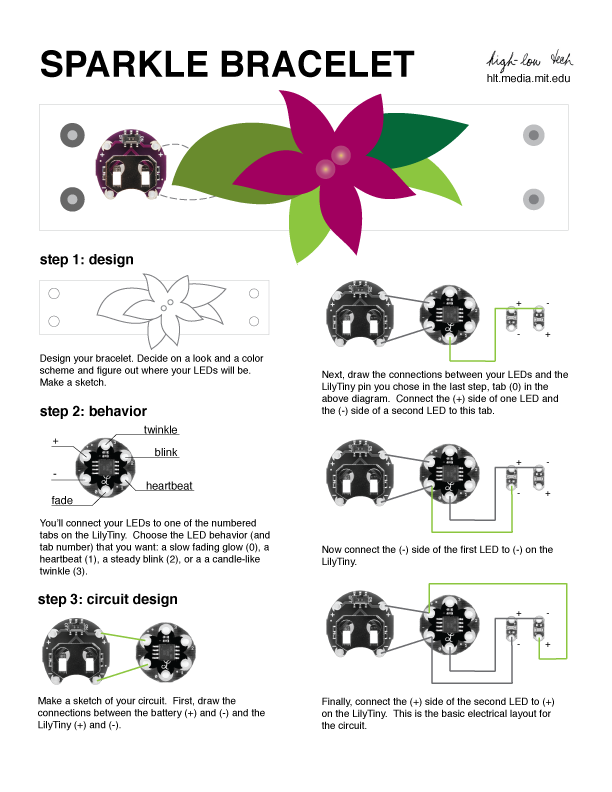
And, here's my plan:

On to try #2!
Wednesday, January 7, 2015
Programming, Metaphor, and Light
Lately, I've been posting a lot about other people's classes, so today I'm going to take today to share what I've been doing in my classes.
The 7th graders are starting a project this week using soft circuitry to create a symbolic, programmed object. Here's how it works:


The 7th graders are starting a project this week using soft circuitry to create a symbolic, programmed object. Here's how it works:
- Prior to the project, we'd explored paper circuits, so they understand the concept of a circuit.
- To start the project, I showed students 3 examples of soft circuitry from my blog.
- Then I asked them, "Well, what might YOU make?" and shared this document with them:
(The students definitely asked me to un-nerdify the 3 bullet points & I said, "Design and make an object, plan how your circuitry and microcontrollers will work, and make sure your object is symbolic")
- I asked the students to look at the following 4 images:
- They identified each one immediately. In case you don't know the 4th one, that's the Shipley Gator.
- I explained that these 4 logos are symbols for events, characters, companies, and schools. Even though they don't have words, viewers see them and can identify a whole bunch of meaning that goes with them.
- The students then found their own logos and put them in a shared document.
- Next, I said that symbols are often more abstract than a company logo, and shared these 4 images:
- Then, they pulled out ideas of what a tree, dove, gravestone, and light might symbolize, and we talked about how they might choose a corporate-ish symbol or a symbolic object - it was completely up to them.
- Next, I gave the students all the resources, and had students store them in plastic bags:

- The items they received were:
- A battery holder
- A battery
- 2 LED lights
- a LilyTiny (We spent a while talking about the LilyTiny and what it can do)
- The items I had in reserve were:
- Conductive thread
- Embroidery floss
- Sewing Needles
- A lot of felt
- Scissors
- Finally, we talked about the theory of design (Using all available resources to make things happen) and what they might need to know and do in order to bring their project to completion.
Tuesday, December 9, 2014
Soft Circuitry Monster with Glowing Eyes
The entire purpose of this post: I just plain love this monster with glowing eyes. Made by one of my students.

Friday, December 5, 2014
Roman Political Graffiti Gets Modernized

I know more now, though. For example, I know that one should never Google "Roman Political Graffiti" because the results will be . . . bawdy. Very, very bawdy. Not that I made that mistake. Every Latin teacher who hears about this project IMMEDIATELY says, "DON'T Google Roman Political Graffiti." I think it's what they teach in Latin teacher educator classes on day 1.
The Project:
In honor of last month's elections, Mrs. Smith wanted her students to consider the relationship between current and past political rhetorics.
First, Mrs. Smith set up a Google Classroom for the class. Because the material would be too risqué for students to search for themselves, Mrs. Smith set up 3 Google Drawing templates that featured images of school-appropriate political graffiti and set it up as an assignment in Google Classroom.
In class, Mrs. Smith gave the students a mini-lesson about the role of graffiti in Roman Political life, from painting over someone else's words to challenging the status quo. She then connected that way of communicating publicly to digital ways of communicating publicly. She had them join the classroom (which took about 30 seconds . . . those 8th graders are getting very familiar with Google classroom) and start working.
Students considered ways to Latinize their names, what they stood for as candidates, and ways they could make the visual image evoke Roman stylings.

Because everything was saved in Google classroom, after students handed in their first draft, Mrs. Smith could comment on ways to improve vocabulary and grammar, ask students to resubmit, and accept their new submissions, all online without having to sift through papers.
And THEN . . . that project was such a success that Mrs. Smith replicated it with her 7th Graders (WITHOUT MY HELP!!!), this time focusing on the 7th graders' trip to Washington, DC and the Greek and Roman influences on the architecture of various memorials. Mrs. Smith again uploaded photos as a template; however, this time, some students used their own photos instead. Each image included a quote (often from the memorial's subject), a Latin saying, and a brief reflection on the experience. Beautiful. (And perfect for those digital portfolios that we're launching!)


Thursday, November 13, 2014
Thinglink & Voicethread . . . which to use?
The conundrum: a Spanish teacher wants her students to explore a piece of art and create a digital presentation. She'd like the presentation to include students speaking, links/videos to external sources, and the ability for students to work collaboratively.
Thinglink and Voicethread both allow for all of these, but they each have benefits and drawbacks.
Here's an example of a Voicethread (poor Dave Baroody is always my example):
The benefits I see: Voicethread's commenting process is simple, it's easy for groups to collaborate because Voicethread was built for conversations, students can draw on a picture as they speak to point viewers to details of paintings, and the groups could have more than one slide per presentation, so they could present more than one image. ALSO, because it's made for collaboration, there's also the possibility of sharing a Voicethread with a Spanish class from another school and connecting across schools.
The drawbacks: the comments are linked to a person rather than a part of the image, and so a person viewing the presentation doesn't know what the comments will be about until she's already pressed the comment. That makes the content of the presentation feel more about the conversation than it feels about the content.
The other option is Thinglink:
Benefits of Thinglink: It's pretty. Really pretty. And the comments are a part of the image, so it's very much a presentation tool, too. Students can collaborate by allowing each other to edit their image.
Drawbacks: Making a class as an educator seems like it would be frustrating. All links have to be external, so if a student wants to add a voice recording or a video, she has to know how to use Soundcloud or youtube respectively. The students can figure these things out quickly, but the number of steps means a larger likelihood of error, a larger digital footprint, and more class time devoted to negotiating the technical aspects of the program.
So, which would you use? I'm torn.
Thinglink and Voicethread both allow for all of these, but they each have benefits and drawbacks.
Here's an example of a Voicethread (poor Dave Baroody is always my example):
The benefits I see: Voicethread's commenting process is simple, it's easy for groups to collaborate because Voicethread was built for conversations, students can draw on a picture as they speak to point viewers to details of paintings, and the groups could have more than one slide per presentation, so they could present more than one image. ALSO, because it's made for collaboration, there's also the possibility of sharing a Voicethread with a Spanish class from another school and connecting across schools.
The drawbacks: the comments are linked to a person rather than a part of the image, and so a person viewing the presentation doesn't know what the comments will be about until she's already pressed the comment. That makes the content of the presentation feel more about the conversation than it feels about the content.
The other option is Thinglink:
Benefits of Thinglink: It's pretty. Really pretty. And the comments are a part of the image, so it's very much a presentation tool, too. Students can collaborate by allowing each other to edit their image.
Drawbacks: Making a class as an educator seems like it would be frustrating. All links have to be external, so if a student wants to add a voice recording or a video, she has to know how to use Soundcloud or youtube respectively. The students can figure these things out quickly, but the number of steps means a larger likelihood of error, a larger digital footprint, and more class time devoted to negotiating the technical aspects of the program.
So, which would you use? I'm torn.
Subscribe to:
Posts (Atom)